















FYT Android-based infotainment systems have become increasingly popular in vehicles due to their advanced features and seamless integration with mobile devices. Whether you’re looking to update your system or troubleshoot performance issues, knowing how to check the FYT Android system board version is an essential step for any car owner.
In this guide, we’ll walk you through the process of checking the FYT Android board version in your vehicle’s infotainment system. We’ll also explain why this is important for maintaining optimal performance and ensuring that your system is up-to-date with the latest software.
Why Checking the FYT Android System Board Version Matters
Before we dive into the steps, let’s understand why checking your FYT Android system version is important:
- System Updates: Knowing your version number helps you determine if your system needs an update. Updates often contain important bug fixes, security patches, and new features.
- Troubleshooting: If you’re facing issues with your in-car entertainment system, checking the version can help identify whether a software update could resolve the issue.
- Kompatibilität: Some apps or features may require a specific version of the FYT system to function properly. Checking your version ensures compatibility with the latest applications and hardware integrations.
Now that we understand why it’s essential, let’s move on to the step-by-step guide.
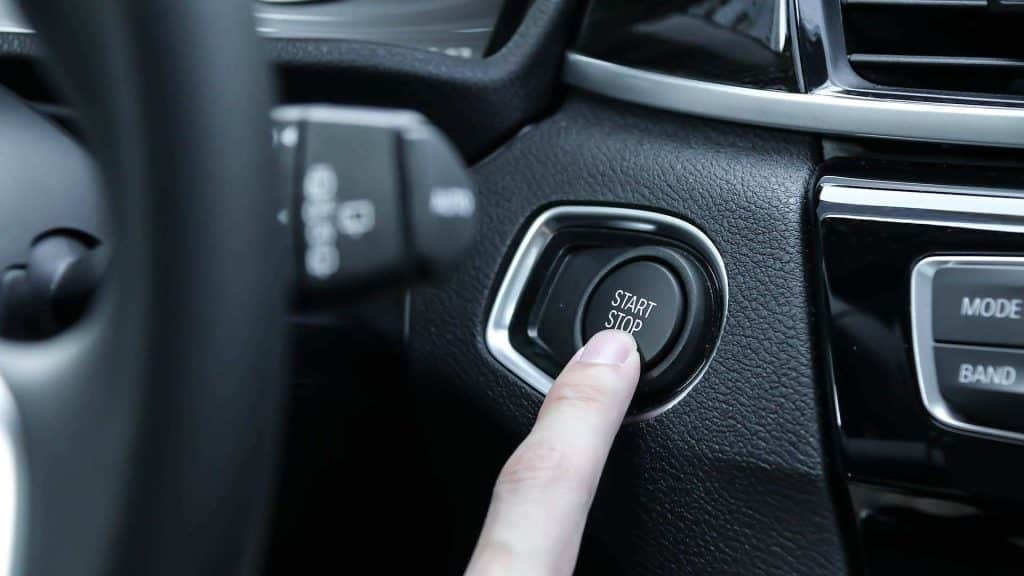
Step 1: Start the Vehicle
Before you can access the FYT Android system version information, you need to ensure that your car’s infotainment system is powered on. Start your vehicle and wait for the system to boot up completely. This ensures that you have full access to the system settings.
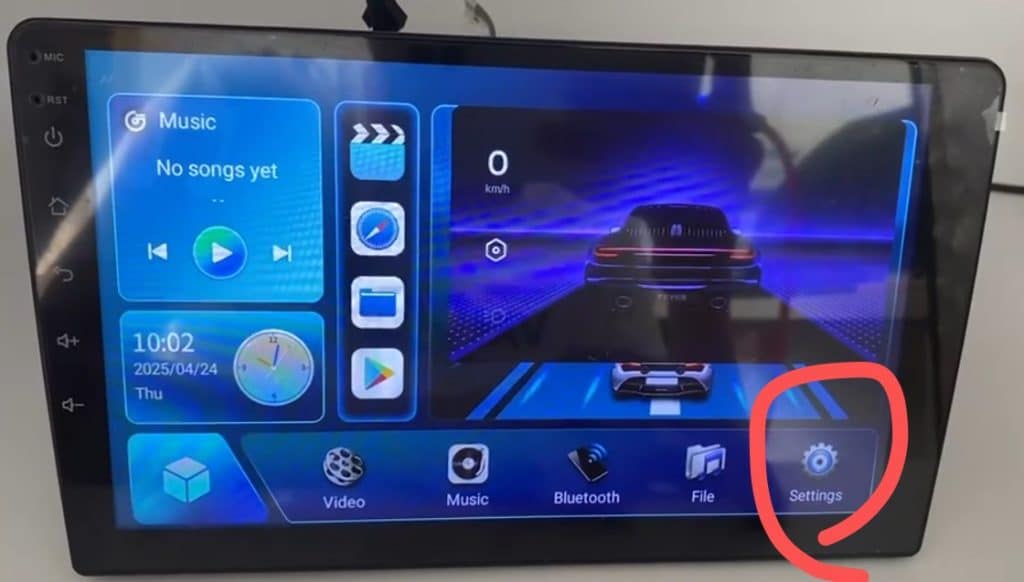
Step 2: Enter the Settings Menu
Once your system is operational, go to the main screen of your car’s infotainment system. Look for the “Einstellungen” icon, typically located at the bottom or side of the screen, and tap on it to open the settings menu.
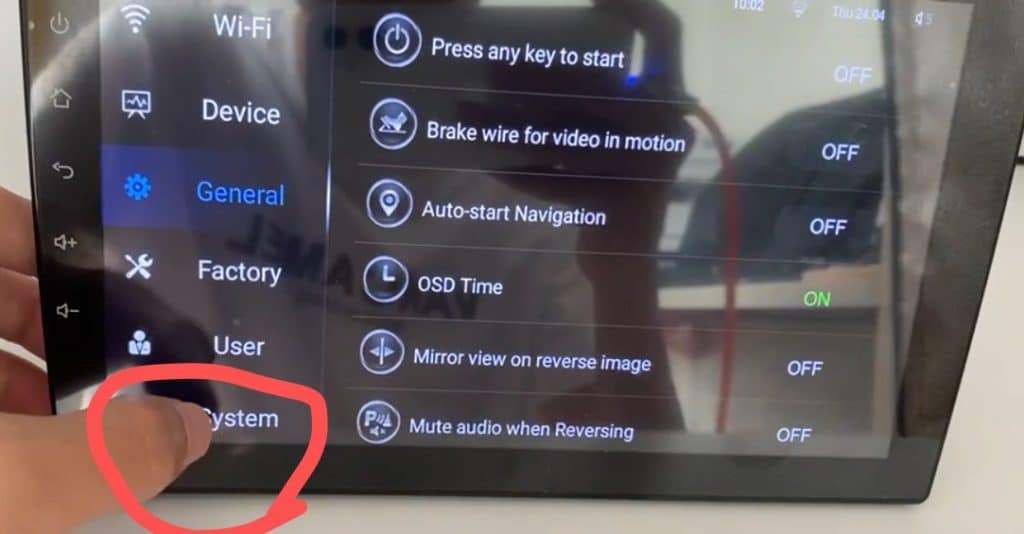
Step 3: Select ‘About Device’
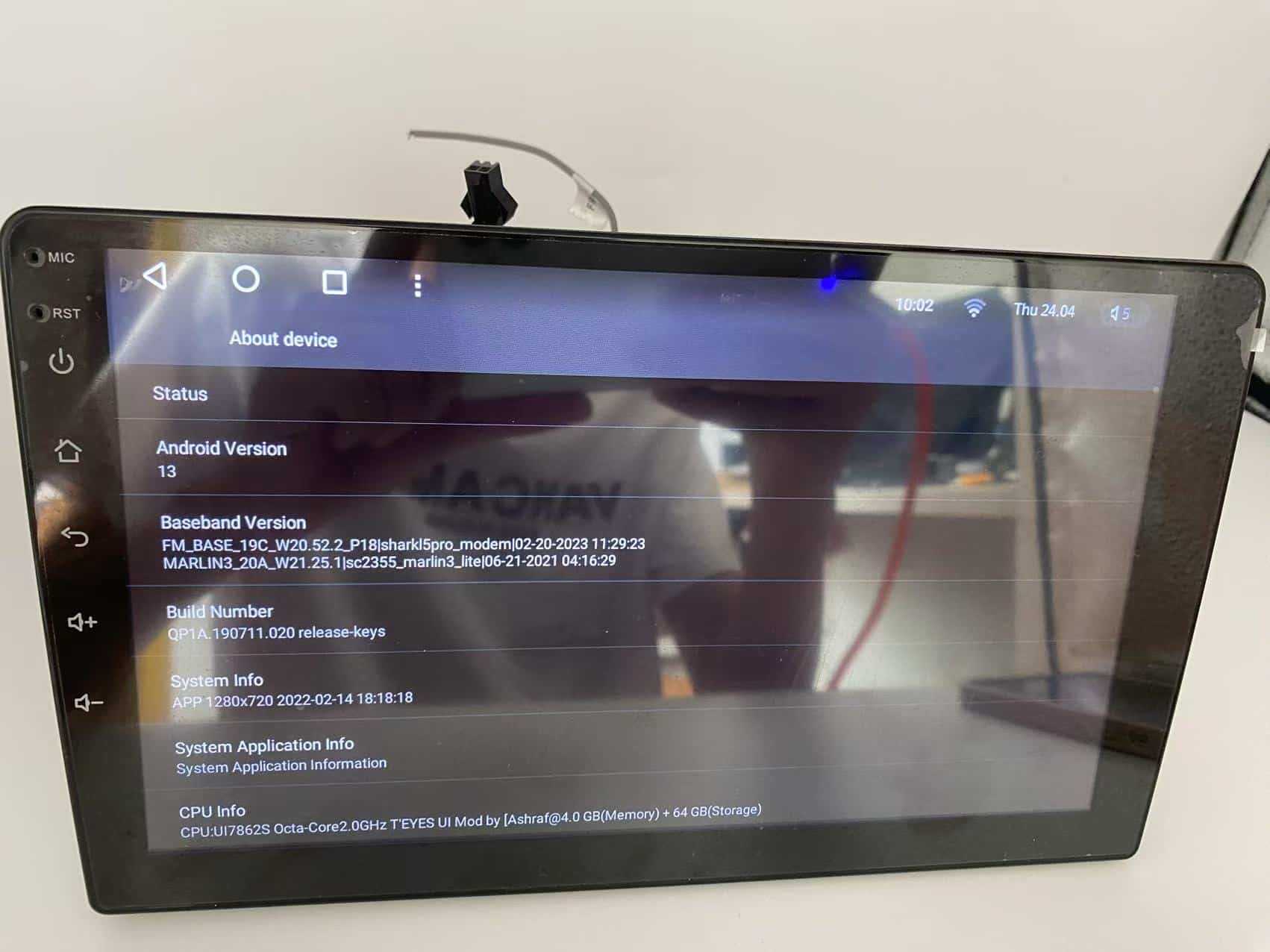
In the Einstellungen menu, scroll down and find the option labeled “Über das Gerät” or “System Information.” This section contains detailed information about the hardware and software of your FYT Android system, including the version of the system board.
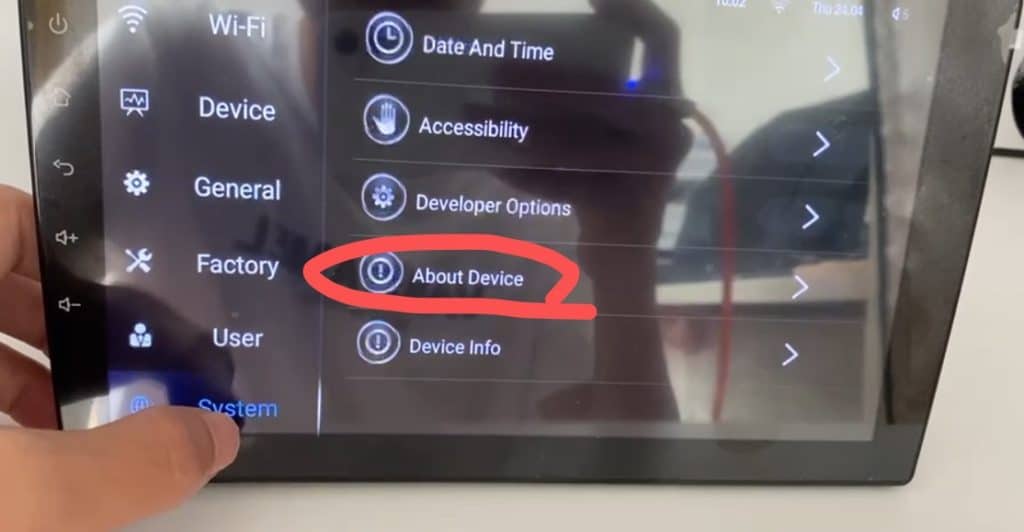
Step 4: View Version Information
Once in the Über das Gerät section, you will see the FYT Android board version displayed, often labeled as “Firmware Version,” “System Version,” or “Android Version.” The version number will typically look something like “FYT_V1.0.0” or similar. Take note of this version number as it is important for any troubleshooting or system updates.
Step 5: Screenshot and Save
To make sure you have this information handy, take a screenshot of the version information page. If your system allows, you can also note down the version number for future reference. This is especially useful if you need to contact support or check for available updates later.
What to Do After Checking Your FYT Android System Board Version
Once you’ve checked your FYT Android system version, there are a few actions you might want to take:
- Check for Updates: If your version is outdated, visit the system’s update section and follow the instructions to install the latest software. Updates often contain critical fixes that can improve the performance of your infotainment system.
- Contact Support: If you encounter problems with your system after checking the version, having the version number available will help support teams diagnose and address your issues more effectively.
- Systemgesundheit erhalten: Regelmäßiges Überprüfen Ihres FYT Android system board version stellt sicher, dass Ihr System mit den neuesten Apps und Funktionen kompatibel bleibt.
Schlussfolgerung
Zu wissen, wie man die FYT Android system board version in Ihrem Infotainment-System im Auto überprüft, ist eine wichtige Fähigkeit für Autobesitzer, die die Leistung und Funktionalität ihres Systems erhalten möchten. Wenn Sie die in dieser Anleitung beschriebenen Schritte befolgen, können Sie die Version Ihres Systems ganz einfach überprüfen und sicherstellen, dass Sie immer auf dem neuesten Stand sind.
Egal, ob Sie Probleme beheben oder Ihr System einfach aktuell halten möchten, diese einfache Überprüfung kann einen erheblichen Unterschied für das Gesamterlebnis mit dem Infotainment-System Ihres Fahrzeugs machen.