














FixMyDash – Android Car System Upgrade Guide
This comprehensive guide provides step-by-step instructions to upgrade your Android car head unit (TS10, TS8, or T3) using a USB flash drive.
TS10 System Upgrade Tutorial
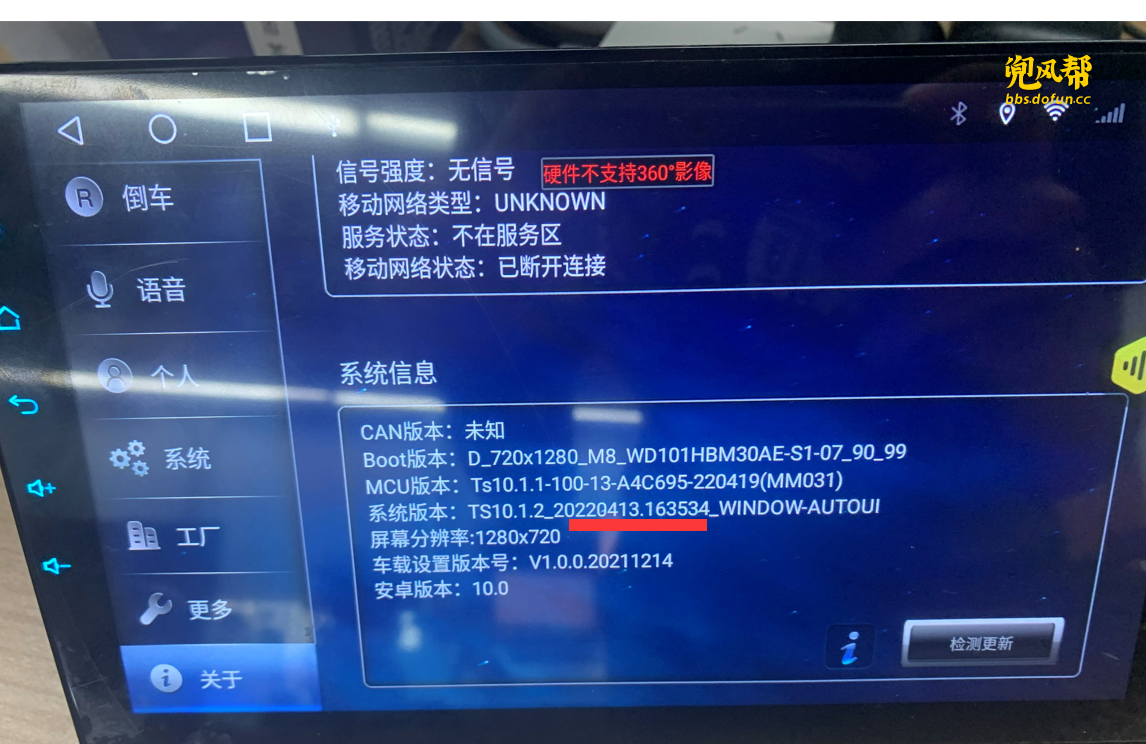
1. Check System Version
Go to Settings > About and confirm your system version starts with TS10. This ensures you download the correct firmware.
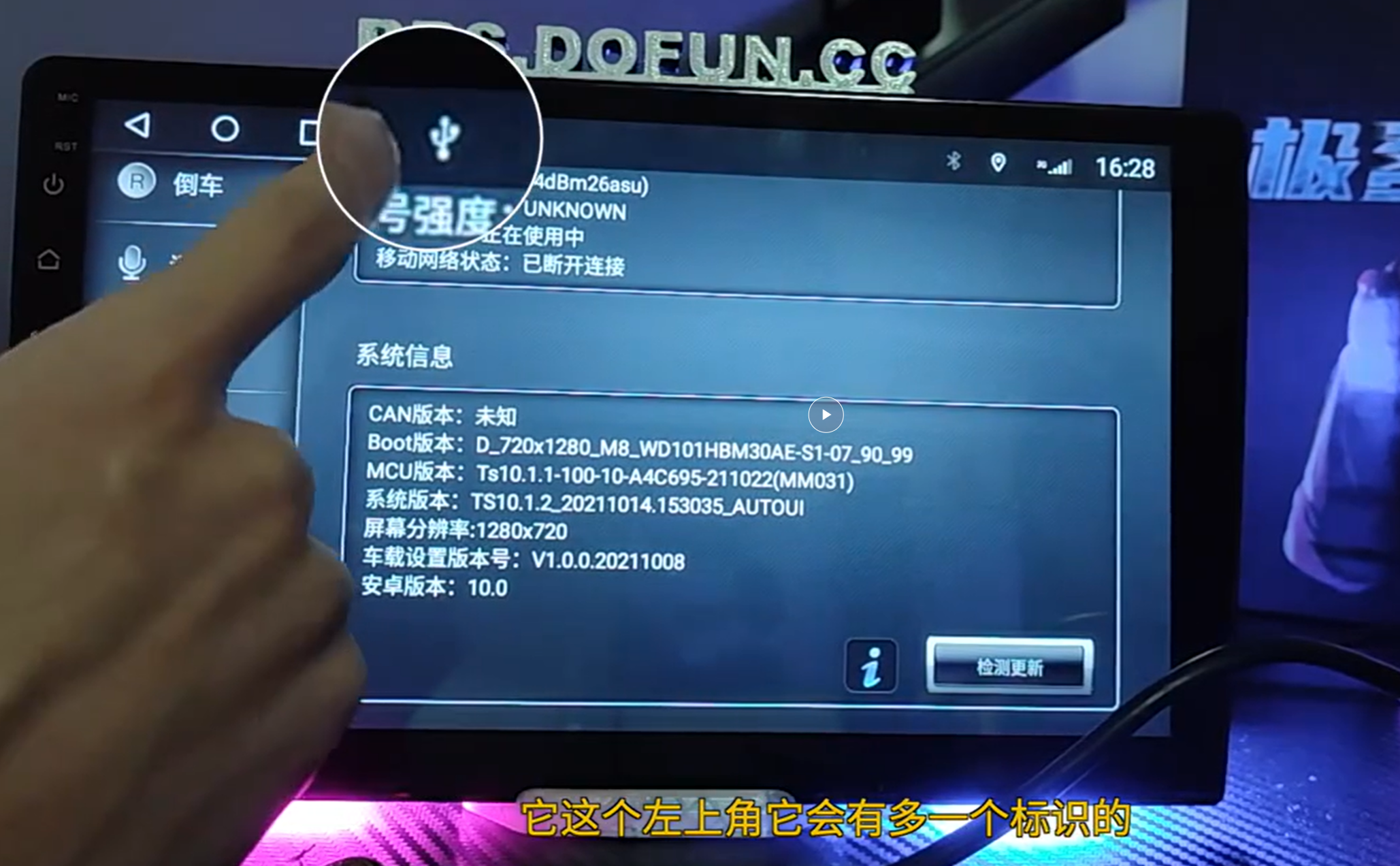
2. Insert USB Drive
Prepare a FAT32-formatted USB drive, copy the extracted firmware files to the root directory, and plug it into your head unit.
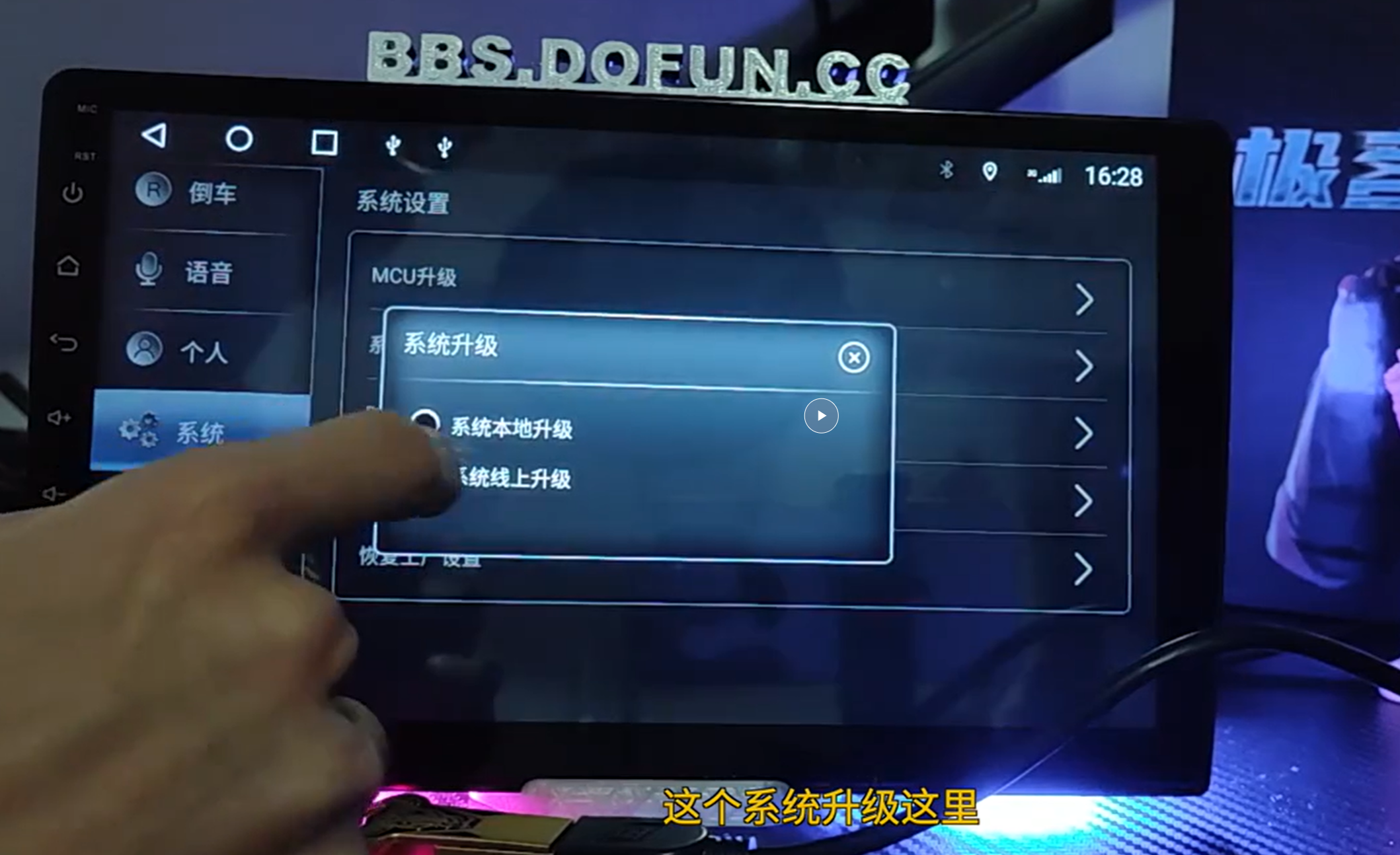
3. Navigate to Upgrade Menu
Go to Settings > System > System Update and choose USB Upgrade to begin installation.
4. Upgrade in Progress
The system will show green text as each firmware file is loaded. Do not power off the unit during this process.
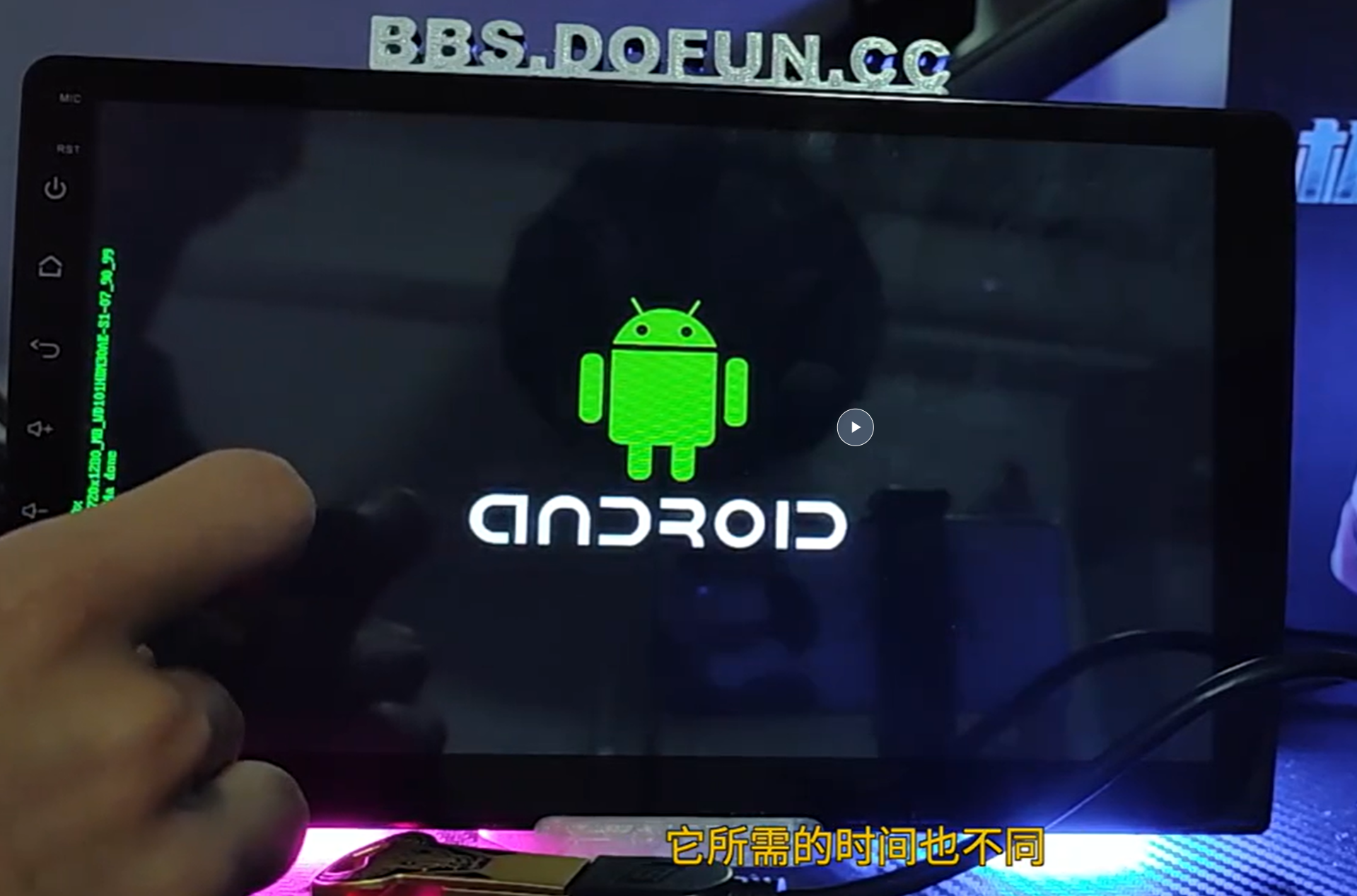
5. Upgrade Complete
Once the upgrade is complete, the system will prompt for a restart to apply changes.
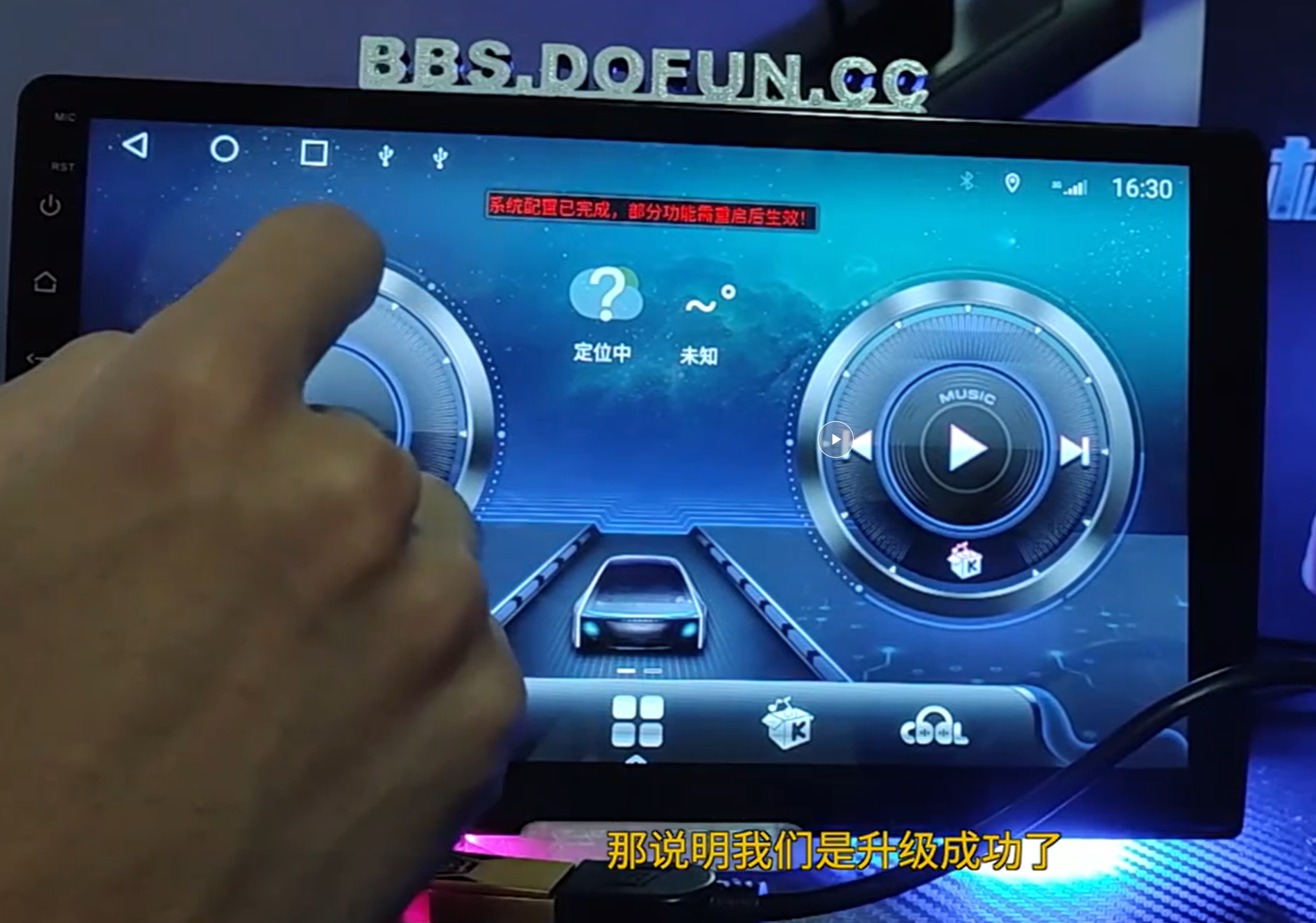
6. Confirm New Version
After restart, go to Settings > About again to verify the system version has changed.

TS8 System Upgrade Tutorial
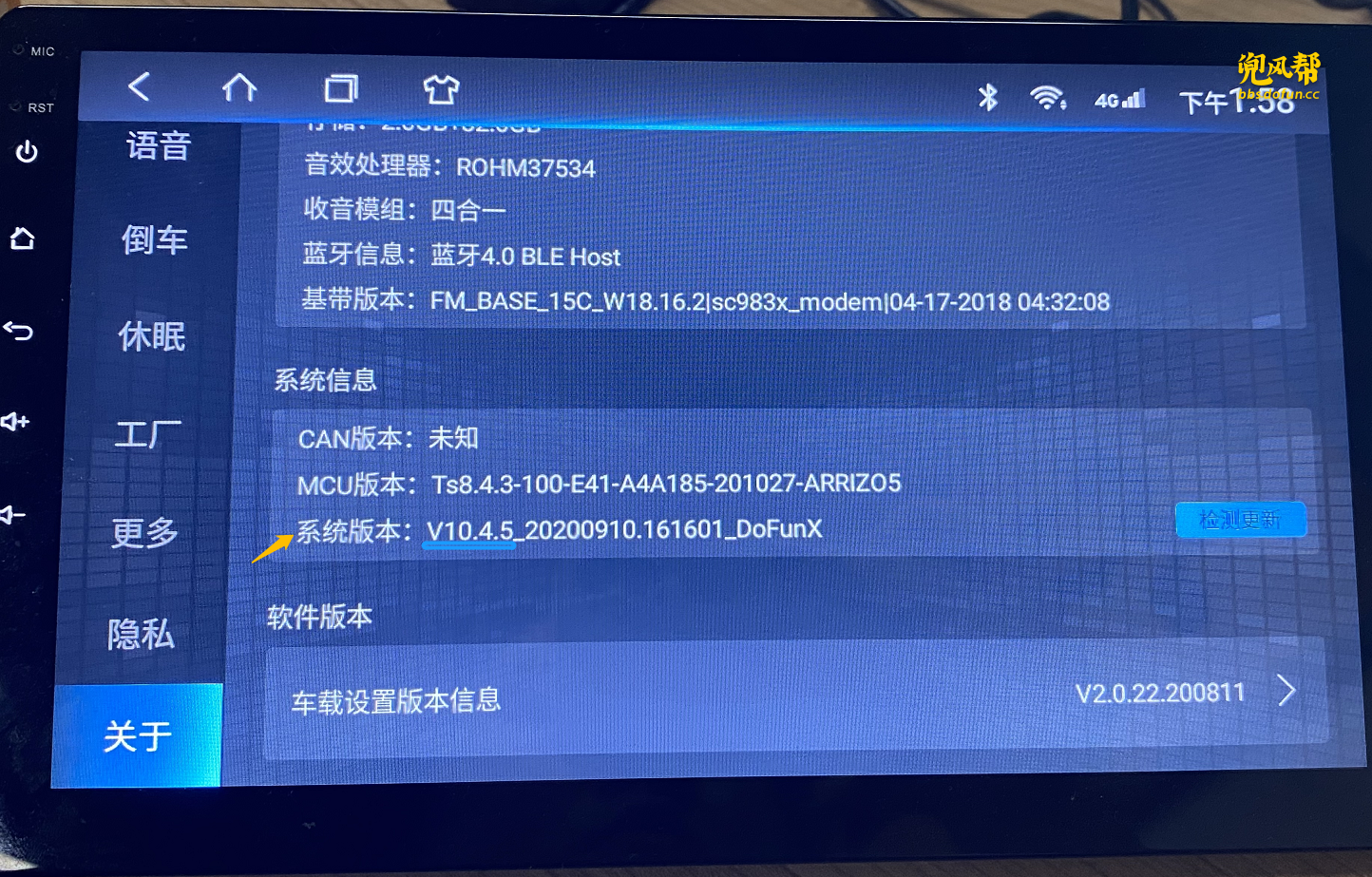
1. Check System Version
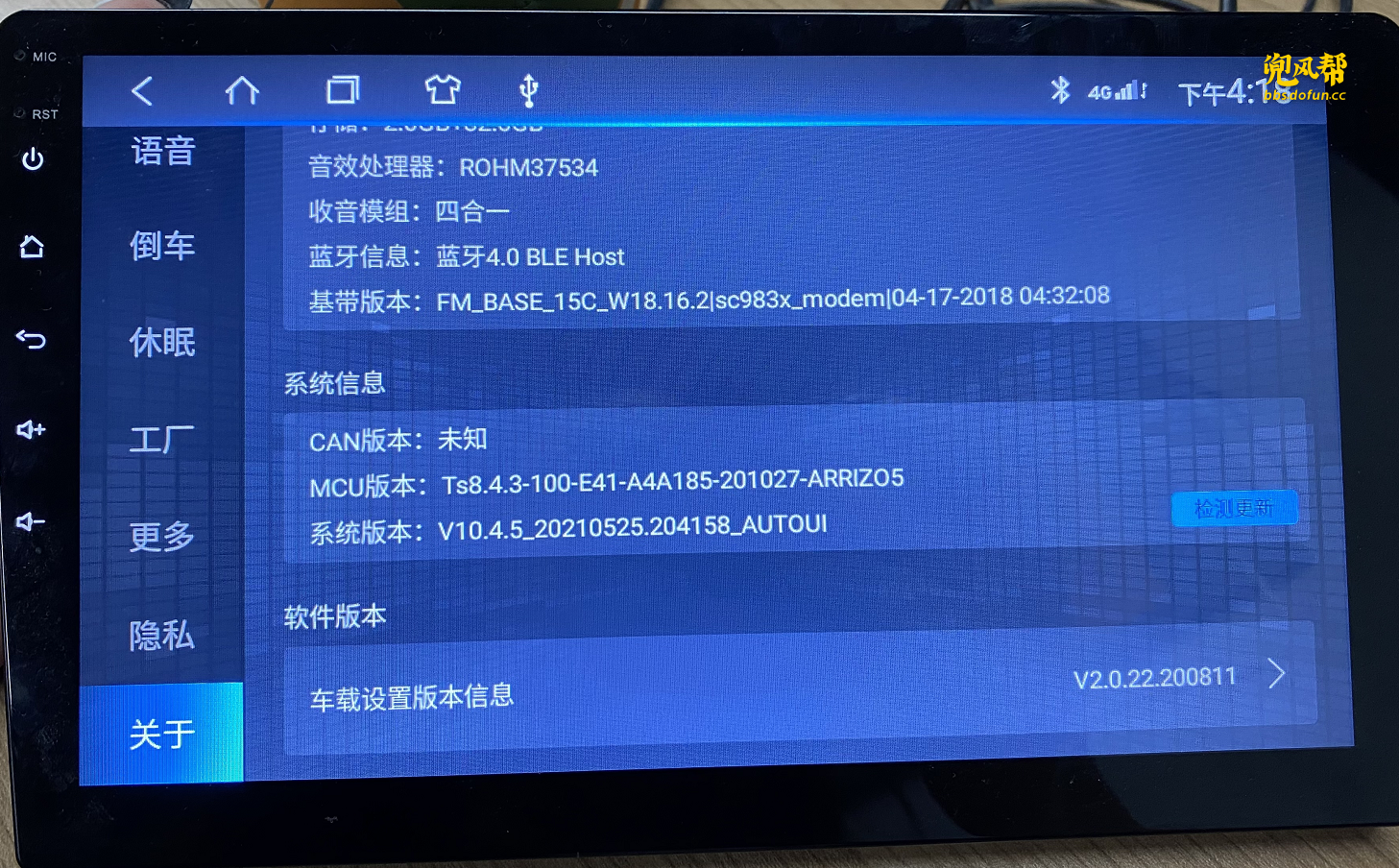
Go to Settings > About to confirm your unit uses the TS8 platform and note the firmware version prefix (e.g., V10.4.5).
2. Insert USB Drive
Format a USB drive to FAT32, copy the firmware files to the root directory, and plug it into the USB port.
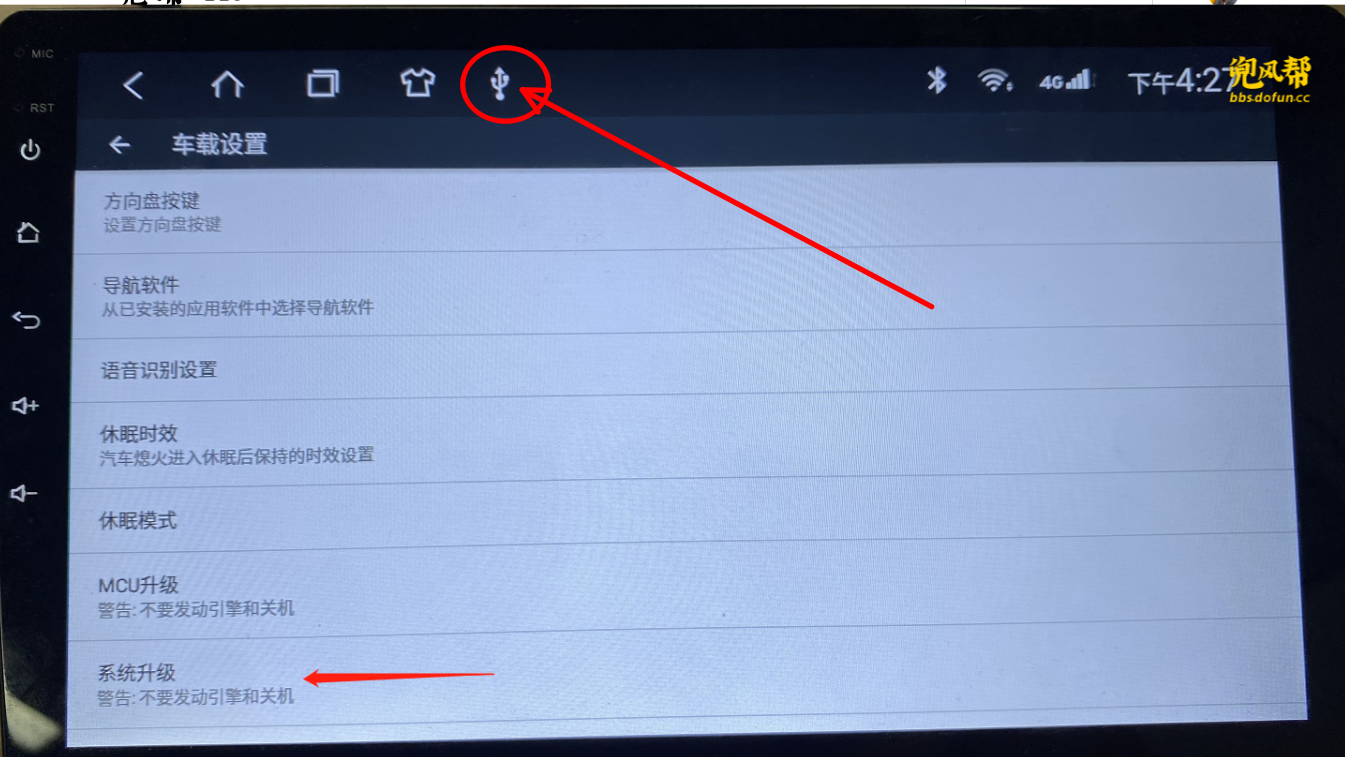
3. Navigate to Upgrade Menu
Go to Settings > More > Car Settings > System Upgrade. Then select USB device to proceed.
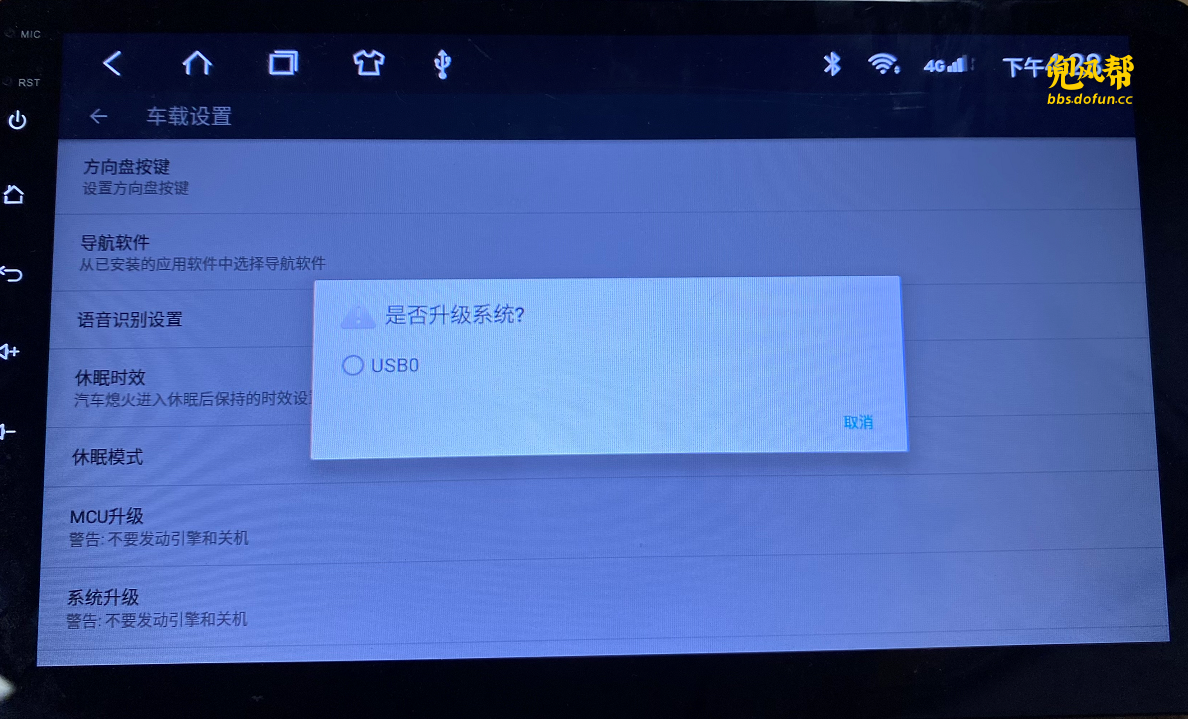
4. Upgrade in Progress
You will see green text lines loading on screen. Each firmware file will display a corresponding status.

5. Confirm New Version
After reboot, go to Settings > About and check if the system version has been updated.
T3 System Upgrade Tutorial
1. Check System Version
Go to Settings > About to confirm your T3 system and firmware version (e.g., V6.4.4).

2. Navigate to Upgrade Menu
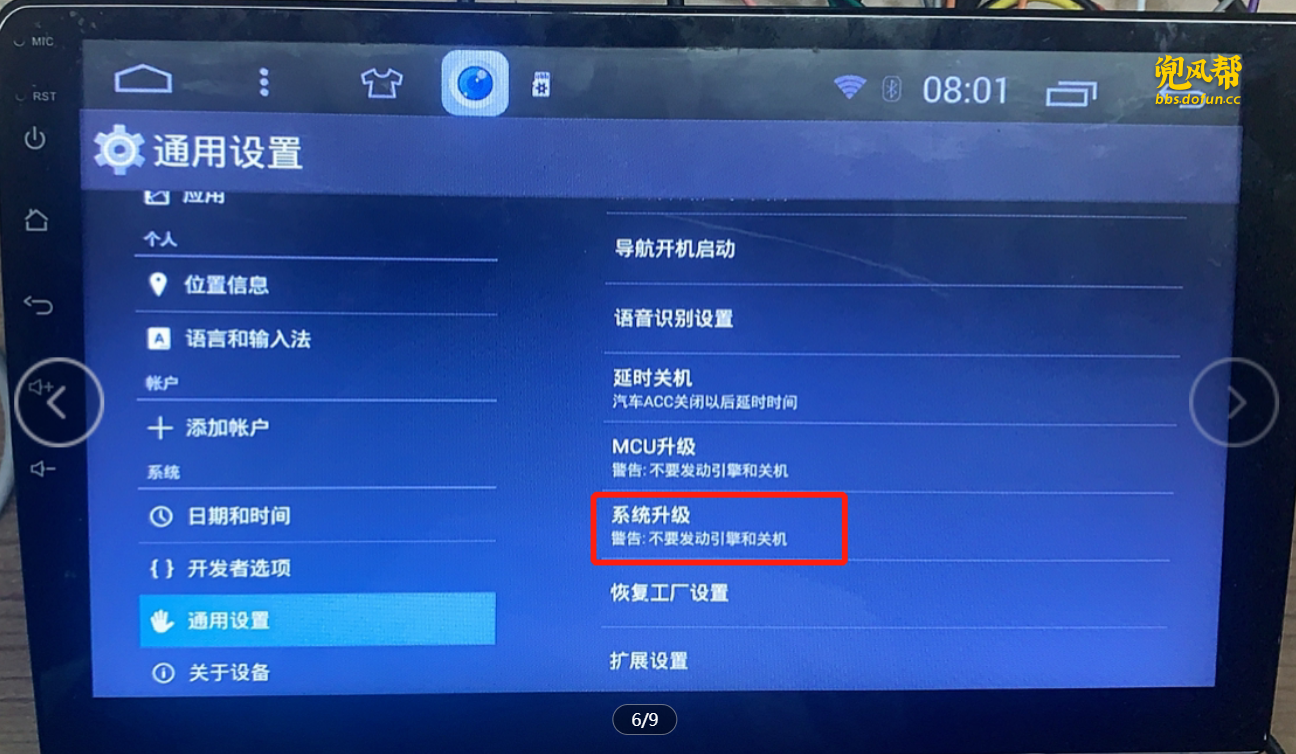
Go to Settings > General Settings > System Upgrade.

3. Insert USB Drive
Plug in a prepared USB with firmware files into the head unit. The unit will detect and begin upgrade.
4. Upgrade in Progress
Green letters will appear as the firmware is processed. Wait until the system prompts for reboot.

5. Confirm New Version
After system restarts, go to Settings > About and confirm that the version has changed.