















Fixing and Cleaning Your Car’s Touchscreen: The Complete 2025 Repair & Maintenance Guide
Is your car’s touchscreen starting to glitch, lag, or go completely unresponsive? Whether you’re struggling with greasy fingerprints, cracked glass, or ghost touches, you’re not alone.
Need a new head unit or want to upgrade?
Shop high-end Android car head units at Ikagoo
or find budget models at CarMP5.com.
- Why the Touchscreen Is the Heart of the Modern Dashboard
- Common Touchscreen Failures and How to Diagnose Them
- Software vs Hardware Issues: How to Tell the Difference
- How to Replace Your Android Car Stereo Touchscreen: A Step-by-Step Guide
- Aftercare: Maintain Your New Touchscreen Like a Pro
- Häufig gestellte Fragen
- Why Choose FixMyDash?
Why the Touchscreen Is the Heart of the Modern Dashboard
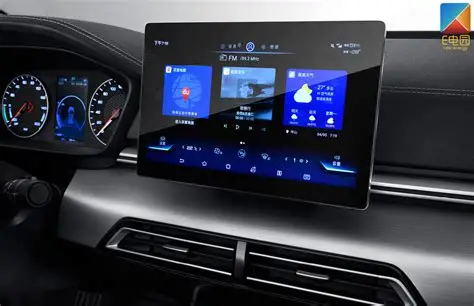
Modern vehicles—from premium brands like BMW, Mercedes, and Audi to mainstream models like Ford, Toyota, and Honda—are increasingly reliant on central touchscreens. These interfaces control not just media and navigation, but also air conditioning, system settings, rear camera feeds, and even vehicle diagnostics. When the touchscreen fails, you’re no longer just losing music—you’re losing full access to your vehicle’s digital interface.
Unlike the resistive screens used in early navigation systems, today’s units rely on capacitive multi-touch digitizers—similar to smartphones, but with different voltage tolerances and physical layouts. That also means they’re more sensitive to physical wear, moisture, cleaning chemicals, and high temperatures.
Common Touchscreen Failures and How to Diagnose Them
1. Unresponsive Touch
This is by far the most reported issue. You tap the screen—and nothing happens. Sometimes the whole panel is unresponsive; other times, only certain areas stop detecting input. This can result from:
- Physical damage to the digitizer layer
- Loose ribbon cable inside the unit
- Dirty or greasy screen interfering with sensitivity
- Software crash (UI layer freezing)
Diagnostic Tip: Try a hard reboot (hold power + volume down for 10 seconds). If reboot restores function, it’s likely a software hang. If not, hardware inspection is required.
2. Ghost Touch or Phantom Inputs
Have you seen your screen operate as if it’s being touched randomly—without anyone near it? This “ghost touch” problem is often caused by:
- Moisture trapped under the glass layer
- Separation between digitizer and LCD
- Electromagnetic interference from other components
- Overheated screens during summer parking
In severe cases, the unit may start calling contacts or changing music tracks on its own.
3. Cracked or Shattered Screens
A broken glass panel is often obvious—but even minor cracks can interrupt touch accuracy. Some hairline fractures don’t affect the display but make parts of the screen unresponsive or produce “dragging touch” effects.
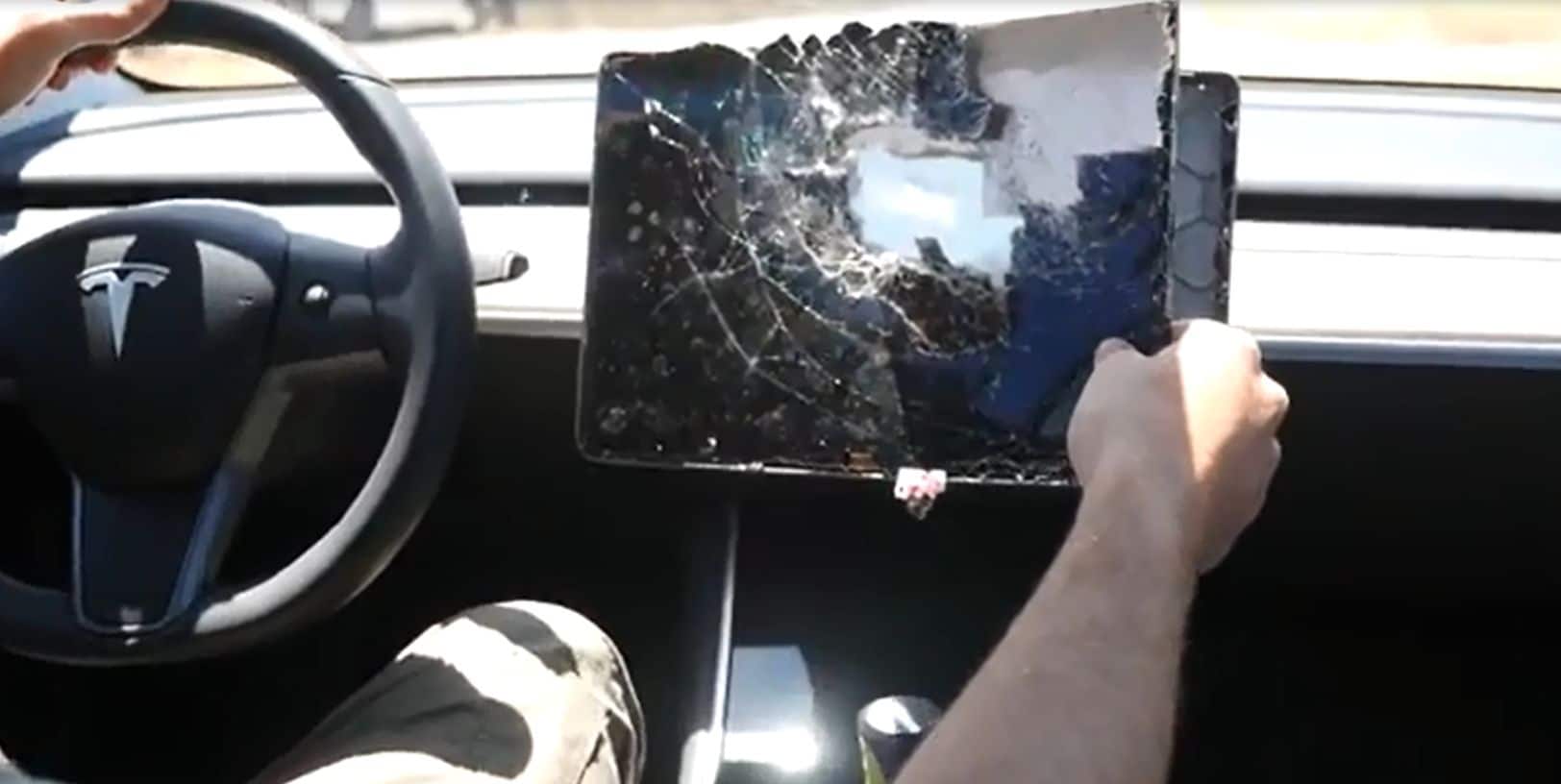
Wichtig: Most car touchscreens are not bonded to the LCD—so you can replace just the top layer (digitizer) instead of the whole unit, saving hundreds of dollars.
4. Screen Flicker or Black Zones
If your screen flickers when driving over bumps or shows black patches, it may be a connector issue or LCD failure. But before declaring it dead, check:
- Are cables properly seated?
- Was the unit exposed to moisture or high humidity?
- Has the car been parked under sun long-term?
5. Misaligned or Stuck Touch Zones
In this case, touch input registers—but in the wrong place. You tap “Music” and it opens “Settings”. This indicates either:
- A failed calibration layer
- A mismatch between digitizer and system firmware
- Improper screen replacement using the wrong touch panel
Recalibration is rarely an option on low-cost head units. Replacement is usually the fix.
Software vs Hardware Issues: How to Tell the Difference
- Does rebooting fix the issue temporarily? → Likely software.
- Does touch fail only after car gets hot? → Heat-sensitive hardware or cable issue.
- Funktionieren Display und Hintergrundbeleuchtung noch? → Nur die Touchschicht, nicht das LCD.
- Bleibt Ihr Gerät beim Boot-Logo hängen? → Firmware- oder NAND-Flash-Fehler, nicht mit dem Digitizer verbunden.
Anleitung zum Hard-Reset (allgemeine Android-Head-Units)
- Schalten Sie die Zündung vollständig aus
- Halten Sie die Ein-/Aus-Taste + Lautstärke verringern gleichzeitig 10–15 Sekunden lang gedrückt
- Das Gerät sollte neu starten; beobachten Sie, ob der Touch vorübergehend zurückkehrt
- Wenn das Problem weiterhin besteht, fahren Sie mit einer physischen Inspektion oder einem Austausch fort
Immer noch unsicher? Senden Sie eine Diagnoseanfrage
Bei FixMyDash bieten wir kostenlose Ferndiagnose für die meisten Android-Einheiten. Senden Sie uns einfach Fotos Ihres Bildschirms, beschreiben Sie das Problem und geben Sie das Fahrzeugmodell + die Head-Unit-Version an.
📩 Fotos hochladen & Diagnose anfordernHow to Replace Your Android Car Stereo Touchscreen: A Step-by-Step Guide
🧰 Benötigte Werkzeuge und Materialien
- Kunststoffhebel-Werkzeuge (um Kratzer am Armaturenbrett zu vermeiden)
- Kleiner Kreuzschlitzschraubendreher
- Pinzette oder Spudger für Anschlüsse
- Föhn oder Heißluftgebläse (optional, für verklebte Bildschirme)
- Antistatische Handschuhe oder Erdungs-Armband (empfohlen)
- Ihr neuer Ersatz-Digitizer (bestätigte Kompatibilität)
Wenn Sie keinen Werkzeugsatz haben, finden Sie All-in-One-Demontagesets online oder über Ikagoo (premium) oder CarMP5.com (budget).
📦 Welchen Bildschirmtyp ersetzen Sie?
- Nur Digitizer: Glas-Touchschicht (am häufigsten)
- Digitizer + LCD-Kombination: Teurer, erforderlich, wenn das Display selbst defekt ist oder flackert
- Bildschirmgröße: 7″, 9″, 10.1″, 11.8″ oder 13.3″
- Anschlusstyp: 6-pin, 10-pin oder 12-pin Flachbandkabel
- Platinentyp: FYT, Topway, YF Digital usw.
🔧 Anweisungen zum Austausch des Touchscreens
- Schalten Sie das Fahrzeug aus und trennen Sie die Autobatterie, um Kurzschlüsse zu vermeiden.
- Entfernen Sie die Armaturenbrettverkleidung mit Kunststoffwerkzeugen. Seien Sie vorsichtig, um Schäden an den Clips zu vermeiden.
- Schrauben Sie das Android-Hauptgerät ab (normalerweise mit 4 Schrauben befestigt).
- Trennen Sie alle Kabel von der Rückseite (CANBUS, USB, GPS, Strom, RCA).
- Legen Sie das Gerät auf eine weiche Arbeitsfläche. Entfernen Sie das vordere Gehäuse oder die Displayhalterung mit einem Schraubendreher.
- Identifizieren Sie den Flachbandstecker des Touchscreens (oft ein goldenes Flachkabel, das mit der Hauptplatine verbunden ist).
- Den ZIF-Stecker entriegeln und das Kabel entfernen. Nimm dir Zeit – diese sind empfindlich!
- Das beschädigte Touchscreen vorsichtig entfernen. Wenn es verklebt ist, erwärmen Sie die Kanten 30 Sekunden lang mit einem Haartrockner.
- Richten Sie den neuen Digitizer aus und installieren Sie ihn. Make sure it sits perfectly flush with the bezel.
- Reconnect the ribbon, lock the connector, and test the screen before full reassembly.
- Reassemble the head unit and reinsert it into the dash.
- Reconnect your battery, power on, and confirm full touch functionality.
Aftercare: Maintain Your New Touchscreen Like a Pro
- Apply a screen protector: Use anti-glare or tempered glass protectors to resist scratches and reduce smudging.
- Park smart: Avoid direct sunlight when possible. Use windshield shades in hot climates.
- Keep microfiber cloths in your car: Clean the screen weekly with dry or lightly damp cloths.
- Avoid sharp objects: Fingernails, styluses, or car keys can permanently damage the digitizer.
- Never spray liquids directly: Always apply cleaning fluid to a cloth—not on the screen.
- Check firmware updates: Some ghost touch issues are solved by updating your unit’s OS.
Häufig gestellte Fragen
1. Can I replace only the touchscreen and not the whole unit?
Yes, if the LCD and board are functional. You can replace just the digitizer layer.
2. What’s the difference between a digitizer and an LCD?
The digitizer is the touch-sensitive glass layer; the LCD shows images. Most users only need a new digitizer.
3. What size is my touchscreen?
Measure the diagonal of the visible screen area, not including the bezel. Common sizes include 7”, 10.1”, and 11.8”.
4. Do all Android screens use the same connector?
No. Connectors vary by board type and pin count (6, 10, 12, etc.). Always confirm before ordering.
5. Can I clean my screen with alcohol wipes?
No. Alcohol degrades the capacitive coating. Use screen-safe fluid and microfiber only.
6. How do I know if my screen is compatible?
Check the screen sticker, ribbon connector, or send photos to FixMyDash support for help.
7. What causes ghost touches?
Heat, moisture under the screen, or digitizer-LCD separation. Can often be fixed with cleaning, sometimes requires replacement.
8. Do you offer international shipping?
Yes. We ship to the US, Canada, UK, EU, Australia, and most of Asia with tracking and warranty.
9. Can I upgrade my 10.1” screen to 11.8”?
Only if your dashboard and head unit support the size. Some models offer larger bezels with the same internal board.
10. What’s the average lifespan of a car touchscreen?
With proper maintenance, 3–5 years is common. Excessive heat or abuse can reduce this dramatically.
Why Choose FixMyDash?
- ✅ 100+ touchscreen models in stock
- ✅ Free compatibility checks—send photos or car info
- ✅ Worldwide tracked shipping
- ✅ 24-hour technical support response
- ✅ Trusted by thousands of customers globally